APN and Data Roaming Settings: The 2026 eSIM Configuration Guide
Learn how to set APN and data roaming for travel eSIMs on iPhone 17 (iOS 20), Samsung Galaxy S26 (One UI 8.0), and Google Pixel 10 (Android 17). Enable roaming only on your travel line, avoid home-carrier charges, fix common connection issues, and follow practical tips for international trips.
eSIM 词汇
简明定义,附带统计数据和指南链接。 打开旅行 eSIM 术语表
- Understanding APN and Data Roaming for eSIMs
- Why Data Roaming Settings Matter for eSIM Users
- iPhone 17 and iOS 20: Complete Configuration Guide
- Samsung Galaxy S26 and One UI 8.0: Step-by-Step Setup
- Google Pixel 10 and Android 17: Configuration Walkthrough
- Common APN Configuration Issues and Solutions
- Best Practices for International eSIM Usage
- FAQs
- Conclusion
Getting your eSIM connected doesn't have to be complicated. While scanning your QR code and installing your eSIM takes just minutes, the right APN and data roaming settings make sure you stay connected without surprise charges from your home carrier.
This guide covers the exact configuration steps for 2026's most popular devices. You'll learn how to enable data roaming for your travel eSIM while keeping your home SIM safe from international charges.
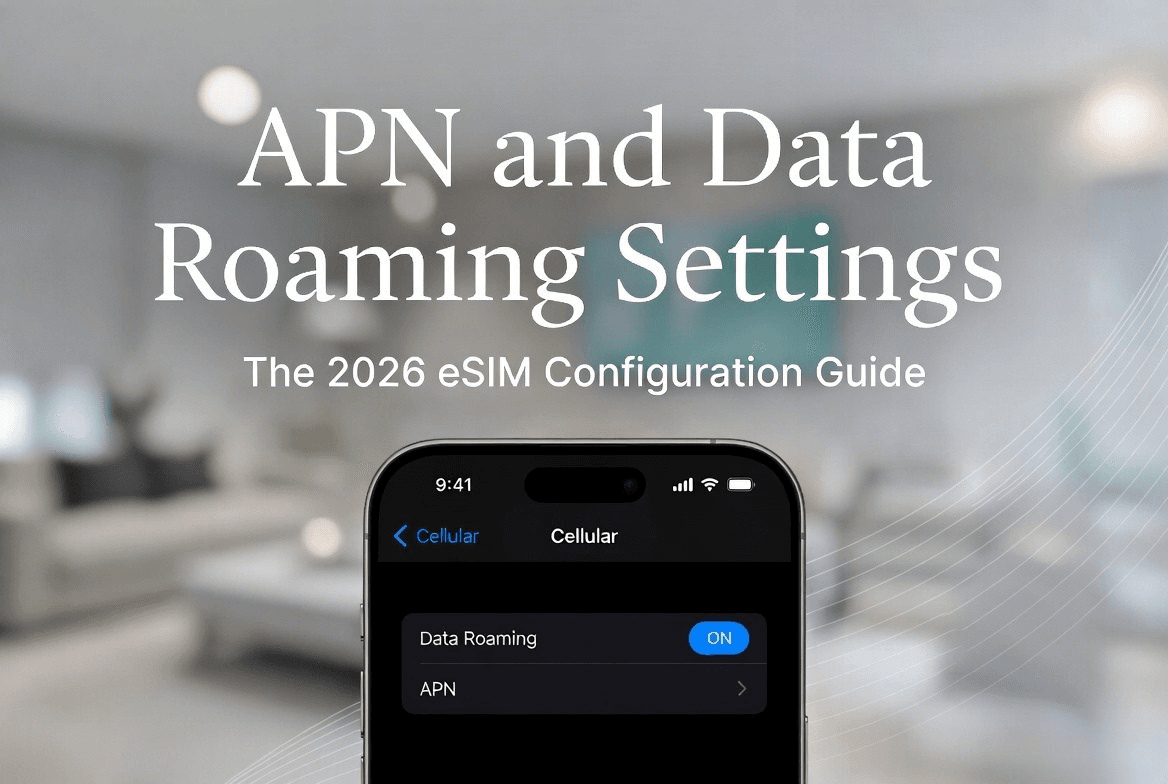
Understanding APN and Data Roaming for eSIMs
APN (Access Point Name) settings tell your phone how to connect to your carrier's data network. Think of it as your phone's roadmap to the right internet gateway. Most eSIM providers automatically configure these settings when you install your eSIM.
Data roaming lets your phone use cellular networks outside your home country. Here's what many travelers don't realize: enabling data roaming for your eSIM won't trigger charges on your home SIM card. Your phone treats each SIM as completely separate.
Your travel eSIM runs on prepaid plans starting at $3.99, so surprise bills aren't possible. The data roaming setting simply allows your eSIM to connect to local networks wherever you're traveling.
Why Data Roaming Settings Matter for eSIM Users
Most travelers turn off data roaming to avoid international charges from their home carrier. While this protects your wallet, it can also prevent your travel eSIM from working.
When data roaming is disabled globally, your phone blocks all international data connections—including your prepaid eSIM. You need data roaming enabled specifically for your travel eSIM while keeping it disabled for your home line.
Today's smartphones let you control data roaming separately for each SIM. This means you can use your international eSIM freely while your home SIM stays protected.
iPhone 17 and iOS 20: Complete Configuration Guide
iOS 20 on the iPhone 17 makes eSIM management more intuitive than ever. Apple has simplified the process while giving you detailed control over each line.
Setting Up Your eSIM APN on iPhone 17
Your eSIM should configure APN settings automatically, but here's how to check or adjust them:
- Open Settings > Cellular
- Tap your eSIM line (usually labeled as "Travel" or your carrier name)
- Select Cellular Data Options
- Tap Cellular Data Network
- Verify the APN field shows your provider's settings
Most eSIM services handle APN configuration automatically. If your connection isn't working, contact your eSIM provider for the correct settings instead of guessing.
Enabling Data Roaming for eSIM Only
Here's how to enable data roaming for your travel eSIM while protecting your home line:
- Go to Settings > Cellular
- Tap your home SIM line first
- Select Cellular Data Options
- Turn Data Roaming OFF for your home line
- Return to Cellular settings
- Tap your eSIM travel line
- Select Cellular Data Options
- Turn Data Roaming ON for your eSIM
- Set your eSIM as the default line for Cellular Data
Your iPhone 17 will now use your travel eSIM for internet while keeping your home line protected from international charges.
Samsung Galaxy S26 and One UI 8.0: Step-by-Step Setup
Samsung's One UI 8.0 offers comprehensive SIM management options. The Galaxy S26 handles dual SIM setups smoothly, making it easy to manage both your home and travel lines.
Configuring APN Settings on Samsung S26
Samsung devices usually auto-configure APN settings, but you can check them here:
- Open Settings > Connections
- Tap Mobile networks
- Select SIM card manager
- Choose your eSIM line
- Tap Access Point Names
- Confirm your eSIM provider's APN appears and is selected
If you need to add APN settings manually, tap the + icon and enter the details from your eSIM service.
Managing Data Roaming on One UI 8.0
Samsung gives you precise control over data roaming:
- Navigate to Settings > Connections > Mobile networks
- Tap SIM card manager
- Select your home SIM first
- Turn Data roaming OFF
- Return to SIM card manager
- Select your travel eSIM
- Turn Data roaming ON
- Go back to Mobile networks
- Set Preferred network to your eSIM for data usage
One UI 8.0 shows which SIM is active for data in your status bar, so you always know which line you're using.
Google Pixel 10 and Android 17: Configuration Walkthrough
Android 17 on the Pixel 10 delivers clean, straightforward SIM management. Google has improved the interface while keeping powerful customization options.
APN Setup for Pixel 10 Users
Google Pixel devices handle automatic APN configuration well:
- Open Settings > Network & internet
- Tap SIMs
- Select your eSIM
- Choose Access Point Names
- Confirm your provider's APN is listed and active
The Pixel 10 rarely needs manual APN entry. If you're having connection problems, try restarting your phone first—this often fixes temporary configuration issues.
Android 17 Data Roaming Controls
Android 17 makes data roaming management simple:
- Go to Settings > Network & internet > SIMs
- Tap your home SIM
- Turn off Roaming under Data settings
- Return to SIMs
- Select your travel eSIM
- Enable Roaming for your eSIM
- Set your eSIM as Preferred SIM for mobile data
Android 17 displays clear indicators for which SIM handles data, calls, and texts, so there's no confusion about which line is active.
Common APN Configuration Issues and Solutions
Even with automatic configuration, you might run into connectivity problems. Here are the most common issues and how to fix them:
No internet connection after eSIM installation:
- Restart your phone to refresh network settings
- Check that data roaming is enabled for your eSIM
- Confirm your eSIM is set as the preferred data line
Slow data speeds:
- Make sure you're connected to the correct network band
- Move to an area with stronger signal
- Restart your phone to reconnect to the network
APN settings missing or wrong:
- Contact your eSIM provider for the correct APN details
- Delete and re-add APN settings if they look corrupted
- Toggle airplane mode on and off to refresh connections
Data working but apps won't connect:
- Check that specific apps have cellular data permissions
- Verify your eSIM has remaining data balance
- Clear cache for apps that aren't working
Best Practices for International eSIM Usage
Follow these tips to ensure smooth connectivity throughout your travels:
Before you leave:
- Install and test your eSIM while still on your home network
- Download offline maps and translation apps
- Double-check that your home SIM has data roaming disabled
While traveling:
- Monitor your data usage through your eSIM provider's app or website
- Connect to Wi-Fi when possible to save cellular data
- Keep your eSIM QR code saved in case you need to reinstall
For longer trips:
- Top up your data plan before it expires
- Consider buying additional data packages for heavy usage
- Keep your eSIM active by using it regularly
Services like Destination Sim make this process even easier by providing instant eSIM delivery and simple account management for topping up your data whenever needed.
FAQs
Do I need to manually configure APN settings for my eSIM?
Will enabling data roaming for my eSIM cause charges on my home plan?
What should I do if my eSIM isn't connecting to the internet?
Can I use both my home SIM and eSIM at the same time?
How do I know which SIM is being used for data?
What happens if I accidentally enable data roaming on my home SIM?
Do different eSIM providers require different APN settings?
Conclusion
Getting your APN and data roaming settings right ensures your eSIM works perfectly while protecting your home SIM from international charges. The key is enabling data roaming specifically for your travel eSIM while keeping it disabled for your home line.
Today's devices make this straightforward with independent controls for each SIM. Whether you're using an iPhone 17, Samsung Galaxy S26, or Google Pixel 10, the process is similar: set your eSIM as the preferred data line and enable roaming only for that line.
Ready to stay connected on your next trip? Visit Destination Sim for instant eSIM delivery and hassle-free international data starting at $3.99.
主题指南
返回 eSIM 工作原理继续阅读
相关指南
How to Install eSIM QR Code: The Complete 2026 Step-by-Step Guide
How to install an eSIM QR code in 2026: what you need before you start, step-by-step setup on iPhone (iOS 19/20) and Android (16/17), manual SM-DP+ entry when scanning fails, activation and data settings, dual SIM benefits, troubleshooting, and FAQs—no carrier store visit required.
eSIM Profiles and Storage Explained: How Many Can Your Phone Hold? (2026 Guide)
Your phone can store many eSIM profiles, but only a few can be active at once—and each device has a storage cap. This guide explains eUICC storage vs dual active eSIM, 2026 limits for popular phones, how frequent travelers should manage profiles, why reusable eSIMs save slots, and why you should never delete profiles without support.
Switching eSIM Profiles While Traveling: The 2026 Guide
By 2026, switching eSIM profiles on iPhone 17 (iOS 20), Samsung S26 (One UI 8.0), and Pixel 10 (Android 16) is routine—if you know the steps. This guide walks through switching profiles on each platform, using DSDS for 2FA, why you should never delete a profile while traveling, and how reusable eSIM profiles reduce juggling across trips.