eSIM Not Recognized? 2026 Troubleshooting & Fixes
Most eSIM recognition issues are fixed with a restart, toggling the line, or a network reset—without deleting the profile. This guide explains common symptoms, quick fixes for 2026 phones (including iPhone 17 / iOS 26 and Samsung S26 / Android 16–17), manual entry when QR codes fail, how to tell “no service” from “no data,” when to contact support, and FAQs—plus 2026 quick-connect style features described in plain language.
Vocabulario eSIM
Definiciones cortas con datos y enlaces a guías. Abrir el glosario de eSIM para viajes
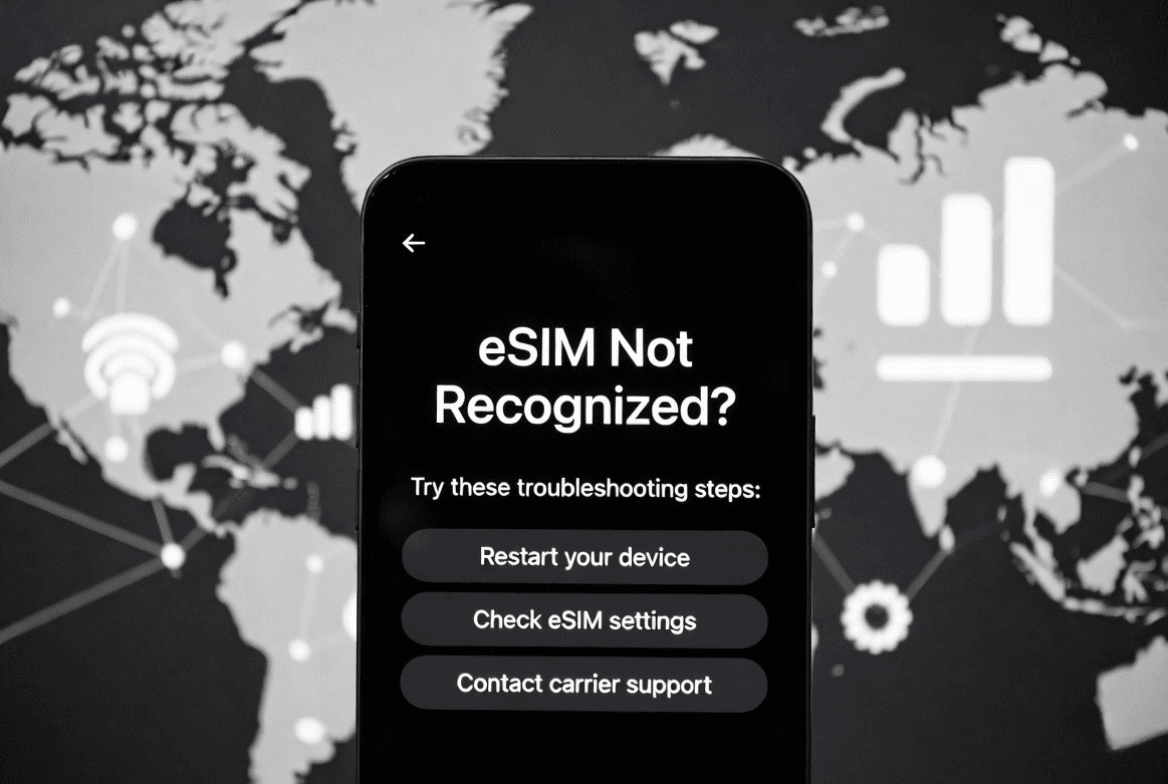
Your eSIM should connect instantly, but sometimes your phone acts like it doesn't exist. This happens more than you'd expect, especially when switching carriers or landing in a new country.
The fix is usually quick once you know what to try. This guide walks through the most effective solutions for 2026's newest devices, including the iPhone 17, Samsung S26, and Google Pixel 10.
- Understanding eSIM Recognition Issues in 2026
- The Golden Rule: Restart First, Never Delete
- Quick Fixes for 2026 Devices
- iPhone 17 & iOS 26 Troubleshooting Steps
- Samsung S26 & Android 16/17 Solutions
- Manual eSIM Entry When QR Codes Fail
- No Service vs No Data: Diagnostic Checklist
- 2026 Quick Connect Features
- When to Contact Support
- FAQs
- Conclusion
Understanding eSIM Recognition Issues in 2026
eSIM problems usually break down into two types: your phone can't find the eSIM profile, or it finds the profile but won't connect to the network.
You'll typically see:
- "No SIM" or "SIM not provisioned" messages
- eSIM shows up in settings but displays "No Service"
- Strong signal bars but no data connection
- Prompts to contact your carrier
The 2026 hardware generation handles eSIMs much better than older phones. The iPhone 17's upgraded eSIM processor and Samsung S26's enhanced connectivity chip manage profile switching more smoothly. Still, software hiccups and network timing issues can cause recognition problems.
The Golden Rule: Restart First, Never Delete
Before diving into complex fixes, restart your phone. This resolves about 70% of eSIM issues because it forces your device to re-scan for profiles and refresh network connections.
Never delete your eSIM profile while troubleshooting. This is where most people go wrong. Once deleted, you'll need a fresh QR code or new activation details. Most carriers can reissue codes, but why create extra steps?
Instead, turn the eSIM profile off and back on in your cellular settings. This refreshes the connection while keeping your activation data intact.
Quick Fixes for 2026 Devices
Work through these solutions before moving to device-specific steps:
- Restart your phone (hold power button, select restart)
- Toggle airplane mode (on for 10 seconds, then off)
- Check for carrier settings updates (usually happens automatically)
- Confirm you're in a coverage area (try moving near a window or outside)
- Verify your data plan is active (check your account or provider app)
If you're using a reusable eSIM, log into your account dashboard to make sure your plan hasn't expired or run out of data. Many services let you top up instantly through their app.
iPhone 17 & iOS 26 Troubleshooting Steps
iOS 26 brought new eSIM management tools to the iPhone 17. Here's how to use them when your eSIM won't connect:
Step 1: Check eSIM Status
- Open Settings > Cellular
- Find your eSIM under "Cellular Plans"
- If it shows "No Service," tap the plan name
- Toggle Turn On This Line off and back on
Step 2: Reset Network Settings
- Go to Settings > General > Transfer or Reset iPhone
- Tap Reset > Reset Network Settings
- Enter your passcode
- Your phone restarts and re-scans for eSIM profiles
Step 3: Force Carrier Settings Update
iOS 26 downloads carrier updates automatically, but you can trigger a manual check:
- Connect to Wi-Fi
- Go to Settings > General > About
- Wait 30 seconds for update prompts
Step 4: Re-scan Your QR Code
If nothing else works:
- Go to Settings > Cellular > Add Cellular Plan
- Scan your original QR code again
- iOS 26 detects existing plans and refreshes the connection
Samsung S26 & Android 16/17 Solutions
The S26 series runs Android 16 or 17 depending on your purchase date. Both versions use similar troubleshooting steps.
Step 1: Access eSIM Settings
- Open Settings > Connections > SIM Manager
- Look for your eSIM under "Available SIMs"
- If it shows as inactive, tap to enable it
Step 2: Network Reset
- Go to Settings > General Management > Reset
- Select Reset Network Settings
- Tap Reset Settings and confirm
- Your phone restarts and re-establishes eSIM connections
Step 3: Use Samsung Quick Connect
The S26's Quick Connect feature speeds up eSIM troubleshooting:
- Swipe down from your screen's top
- Find the Quick Connect tile in your notification panel
- Tap it and select eSIM Refresh
- This forces a network re-scan without restarting
Step 4: Configure APN Settings Manually
Android sometimes needs manual APN configuration:
- Go to Settings > Connections > Mobile Networks
- Select your eSIM line
- Tap Access Point Names
- If empty, contact your eSIM provider for the correct APN details
Manual eSIM Entry When QR Codes Fail
QR codes can be tricky to scan in bright light or with cracked screens. Every major eSIM provider offers manual entry as backup.
iPhone Manual Entry
- Go to Settings > Cellular > Add Cellular Plan
- Tap Enter Details Manually at the bottom
- Type in the SM-DP+ address and activation code from your eSIM email
Android Manual Entry
- Open Settings > Network & Internet > Mobile Network
- Tap Add Carrier or Add eSIM
- Select Enter Manually
- Enter the activation code and server address
Your eSIM provider should include both QR codes and manual entry details in their activation email. This ensures you can connect even when scanning doesn't work.
No Service vs No Data: Diagnostic Checklist
Different symptoms need different fixes. Use this checklist to pinpoint your issue:
No Service Problems
- Phone shows "No SIM" or "Emergency Calls Only"
- eSIM missing from cellular settings
- Signal bars show an X or exclamation mark
- Focus on: eSIM profile activation and network registration
No Data Problems
- Phone shows signal bars and carrier name
- Can make calls (if your plan includes voice)
- Internet apps won't load
- Focus on: Data plan status, APN settings, and account balance
Network Selection Problems
- Phone connects to wrong carrier
- Roaming indicators appear incorrectly
- Focus on: Set network selection to automatic or manually choose your eSIM carrier
2026 Quick Connect Features
The iPhone 17 and Samsung S26 both added Quick Connect features that make eSIM troubleshooting faster:
iPhone 17 Smart Reconnect
iOS 26's Smart Reconnect runs in the background, automatically detecting and fixing eSIM connection issues. You'll get a notification when this happens. After three failed attempts, it prompts you to restart your phone or contact your carrier.
Samsung S26 Network Intelligence
The S26's Network Intelligence monitors your eSIM connection quality and switches between network bands for better performance. It also provides diagnostic info when connections fail.
Both features work with any eSIM provider, including international data services that offer reusable plans managed through dedicated apps.
When to Contact Support
Some eSIM issues need provider help. Reach out if:
- Your eSIM worked before but suddenly stopped
- Manual troubleshooting doesn't fix the issue after 24 hours
- You're seeing specific provisioning error codes
- Your compatible phone won't accept the eSIM profile
Quality eSIM providers offer round-the-clock support through multiple channels. When contacting support, have your order confirmation, device model, and operating system version ready.
Many eSIM services also provide account management through mobile apps, where you can check data usage, top up your plan, or get technical help without waiting for email responses.
FAQs
- Will restarting my phone delete my eSIM?
Conclusion
Most eSIM recognition problems in 2026 have straightforward fixes. Start with a phone restart, keep your eSIM profile intact, and work through device-specific solutions step by step.
Hardware improvements in phones like the iPhone 17 and Samsung S26 have made eSIM connections more reliable, but software glitches still pop up. When basic troubleshooting falls short, reach out to your eSIM provider's support team.
For reliable eSIM services with comprehensive support and reusable plans you can manage through a dedicated app, learn more at destinationsim.com.
Guía temática
Volver a Dispositivos compatibles con eSIMSigue leyendo
Guías relacionadas
iPhone eSIM Compatible Models: The Complete 2026 Guide
2026 list of iPhones with eSIM (XR–iPhone 17), US eSIM-only models, dual SIM travel tips, setup, and plans from $3.99.
Samsung Galaxy eSIM Setup Guide: Complete 2026 Instructions
Step-by-step Samsung Galaxy eSIM setup for One UI 8.0: compatibility, QR and manual activation, dual-SIM tips, troubleshooting, and how eSIM saves money vs roaming—plus FAQs for 2026 Galaxy models.
iPad Cellular eSIM for International Travel: The 2026 Complete Guide
Practical guide for travelers using iPad cellular eSIM in 2026: which models support eSIM, why it beats Wi‑Fi and phone tethering, how to install a plan, how to pick data and duration, fix common issues, and how costs compare to roaming—with quick FAQs and next steps.