





Dual SIM Phone Travel Setup: The 2026 Complete Guide
Dual SIM travel setup lets you keep your home number for banking SMS and 2FA while using a travel eSIM for affordable data abroad—critical as eSIM-only phones become the norm in 2026. This guide covers iOS 19/20, Android 16/17, Samsung One UI 8.0, roaming safeguards, costs, device notes, troubleshooting, and FAQs so you can avoid surprise roaming bills and stay connected.
eSIM 용어
통계와 가이드 링크가 포함된 짧은 정의. 여행 eSIM 용어집 열기
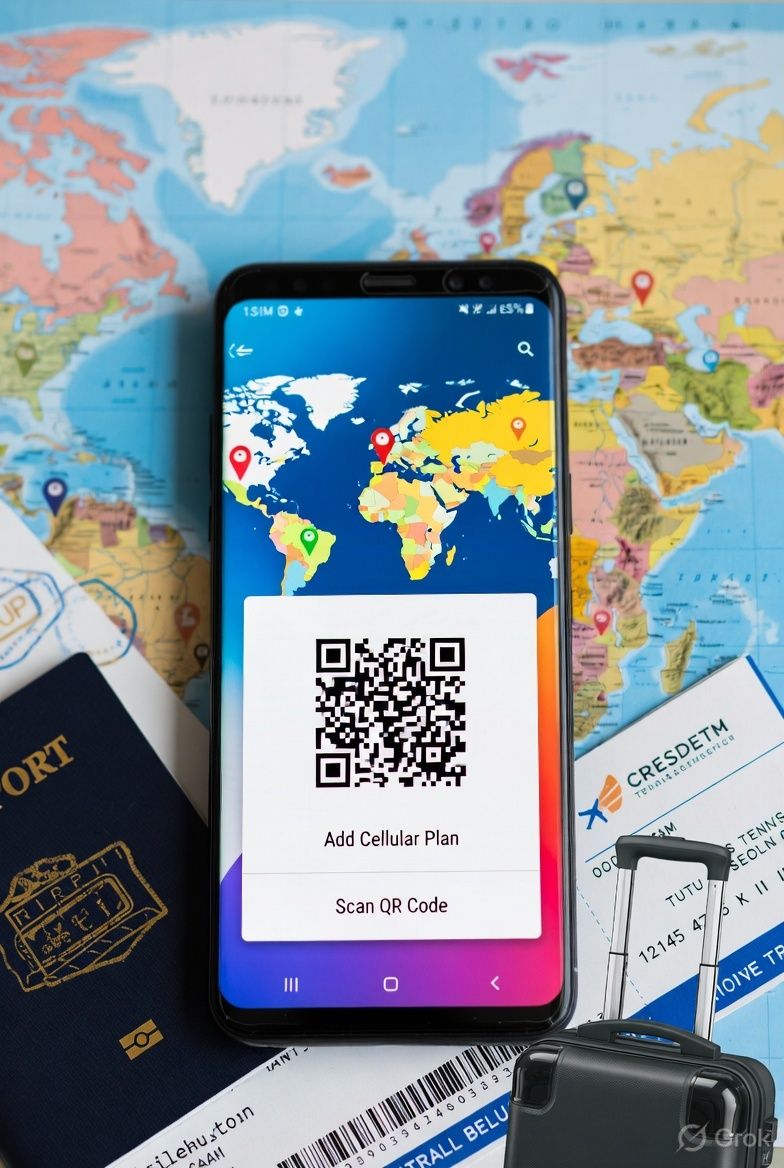
Table of Contents
Why Dual SIM Travel Setup Matters in 2026
International travel doesn't have to drain your wallet through connectivity costs. Traditional carrier roaming fees hit you with $10-15 daily charges, which means a week abroad costs over $100 just to stay online.
Dual SIM travel setup cuts through this problem. Keep your home SIM running for banking SMS and two-factor authentication while pushing all data through an affordable travel eSIM. You get seamless access to essential services plus cost-effective international data.
Since eSIM-only devices like the iPhone 17 and Pixel 10 dominate the 2026 market, managing multiple cellular plans isn't optional anymore—it's essential for smart travelers.
The Smart Traveler's Dual SIM Strategy
Your dual SIM setup works on one simple rule: home SIM handles calls and SMS, travel eSIM handles data.
Home SIM takes care of:
- Banking and 2FA text messages
- Emergency calls to your home country
- Your regular phone number
Travel eSIM handles:
- All internet data
- Local calls at your destination
- Apps and messaging services
This split prevents expensive roaming data charges while keeping you reachable for important communications. Success depends on configuring your phone to route each function correctly.
Step-by-Step Setup for iOS 19/20
iOS 19 and 20 make dual SIM management straightforward. Here's your setup process:
Installing Your Travel eSIM
- Open Settings > Cellular
- Tap Add Cellular Plan
- Scan your travel eSIM QR code
- Label the plan (like "Travel Data")
- Choose Use as Secondary
Configuring Line Preferences
Go to Settings > Cellular > Cellular Data:
- Primary Line: Your home SIM
- Default Voice Line: Your home SIM
- Allow Cellular Data Switching: Turn OFF
Under Settings > Cellular > SIM Applications:
- Set your travel eSIM for data
- Keep your home SIM for calls and SMS
iOS 20 Enhanced Features
iOS 20's Smart Line Selection automatically picks the best line based on location and usage. To set it up:
- Navigate to Settings > Cellular > Smart Selection
- Enable Travel Mode
- Configure data preferences to always use your travel eSIM abroad
Android 16/17 Configuration Guide
Android 16 and 17 give you detailed control over dual SIM behavior:
Adding Your Travel eSIM
- Open Settings > Network & Internet > SIMs
- Tap Add carrier or Download a SIM instead
- Scan your eSIM QR code
- Give your plan a clear name
Setting Up SIM Preferences
In Settings > Network & Internet > SIMs:
For Calls:
- Set your home SIM as default
- Enable Ask every time for flexibility
For SMS:
- Keep your home SIM primary
- Ensures 2FA codes reach you reliably
For Mobile Data:
- Select your travel eSIM
- Turn off Automatically switch to avoid unwanted roaming
Android 17 Travel Enhancements
Android 17's Adaptive Connectivity learns your travel habits:
- Go to Settings > Network & Internet > Adaptive Connectivity
- Enable Travel Assistant
- Set up automatic data switching by location
Samsung One UI 8.0 Specific Settings
Samsung's One UI 8.0 includes travel-focused features that simplify dual SIM management:
SIM Manager Setup
- Open Settings > Connections > SIM Manager
- Install your travel eSIM with the QR code
- Access Smart Switch settings
Configuring Travel Mode
One UI 8.0's Travel Mode optimizes your dual SIM setup automatically:
- Settings > Connections > SIM Manager > Travel Mode
- Enable Auto Data Switching for travel eSIM only
- Set Home SIM Priority for calls and SMS
Samsung's Roaming Guard
Roaming Guard prevents accidental charges:
- Settings > Connections > Mobile Networks
- Select your home SIM
- Enable Roaming Guard
- Set data limits and warnings
Data Switching Settings to Prevent Roaming Charges
Preventing accidental roaming on your home SIM is crucial. Here's how to lock down these settings:
Universal Prevention Steps
Turn off data roaming on your home SIM:
- iOS: Settings > Cellular > [Home SIM] > Data Roaming OFF
- Android: Settings > Network & Internet > [Home SIM] > Roaming OFF
Disable automatic carrier selection:
- Manually select your home network only
- Prevents connecting to partner networks abroad
Set data limits:
- Configure warnings at $5-10 to catch accidental usage
- Set hard stops at $20-30 for protection
Advanced Protection
Use airplane mode strategically:
- Enable airplane mode when you land
- Turn on WiFi to download your travel eSIM
- Enable cellular only after confirming correct data routing
Monitor usage through your carrier's app during your first travel day to verify everything works properly.
Cost Comparison: eSIM vs Carrier Roaming
The numbers tell the story clearly:
Traditional Carrier Roaming (2026 rates):
- Daily fees: $10-15 per day
- Week-long trip: $70-105
- Monthly travel: $300-450
Travel eSIM Approach:
- Plans starting at $3.99 for basic coverage
- 1GB weekly plans: $8-12
- 5GB monthly plans: $25-35
Real example:
- Carrier roaming: $120-150
- Travel eSIM: $12-18
- You save: $100+ per trip
Dual SIM setup also eliminates bill shock. You know your exact spending upfront, with no surprise charges waiting at home.
2026 Device Considerations
The 2026 smartphone landscape heavily favors eSIM technology:
eSIM-Only Devices
iPhone 17 series: Completely eSIM-only in most markets, supporting up to 8 stored eSIM profiles with 2 active simultaneously.
Google Pixel 10: Features enhanced eSIM management with AI-powered network selection.
Samsung Galaxy S26: Includes both physical SIM and dual eSIM capability in global models.
Compatibility Notes
Most 2026 flagship devices support:
- Dual active eSIMs
- Enhanced carrier switching
- Travel-optimized connectivity features
- 5G roaming on eSIM networks
Check your specific device's eSIM capabilities before traveling, since some budget models have limitations.
Troubleshooting Common Issues
eSIM Not Activating
Try these steps:
- Verify strong WiFi or cellular connection
- Restart your device after installation
- Check if your device is carrier-locked
- Contact your eSIM provider for activation support
Wrong SIM Handling Data
Quick fix:
- iOS: Settings > Cellular > Cellular Data > Select correct eSIM
- Android: Settings > Network & Internet > Mobile Network > Select travel eSIM
SMS Not Reaching Home SIM
Check these items:
- Ensure home SIM is set as SMS default
- Check network registration status
- Verify your home carrier supports international SMS reception
- Test with a known contact first
Battery Drain Issues
Dual SIM operation can drain battery faster:
- Disable unnecessary background app refresh
- Use low power mode when needed
- Consider turning off one SIM during low-usage periods
FAQs
Can I use dual SIM setup with any phone?
Most smartphones from 2022 onwards support dual SIM functionality through physical SIM + eSIM or dual eSIM. Check your device specifications to confirm compatibility before traveling.
Will I receive calls on both SIMs?
Yes, you can receive calls on both SIMs simultaneously. However, you can only make calls from one line at a time. Configure your preferences to avoid confusion about which number you're calling from.
How quickly can I get a travel eSIM?
With services like Destination Sim, you receive your eSIM QR code via email within 5 minutes of purchase. This beats waiting for traditional SIM card shipping by days.
What happens if my travel eSIM runs out of data?
Most travel eSIM providers let you top up your plan instantly through their app or website. You can add more data without changing your setup or losing connectivity.
Can I use the same travel eSIM for multiple trips?
Yes, many travel eSIM plans are reusable and don't expire for 12+ months. You can top up the same eSIM profile for future trips to the same region, making repeat travel even more convenient.
Do I need to change settings when I return home?
Most dual SIM setups automatically revert to home network usage when you return. Still, verify your data routing and disable unused international eSIM profiles to preserve battery life.
Are there any apps that won't work with dual SIM setup?
Most apps work normally with dual SIM configurations. Banking apps and services requiring SMS verification will use your home SIM as configured. Some carrier-specific apps may need updates to recognize your travel eSIM.
Conclusion
Setting up your dual SIM phone for travel in 2026 is both simpler and more cost-effective than ever. Keep your home SIM active for essential services while routing data through an affordable travel eSIM, and you'll maintain connectivity without expensive roaming charges.
The process is straightforward: install your travel eSIM, configure data routing correctly, and disable roaming on your home SIM. With proper setup, you'll save hundreds of dollars annually while staying fully connected during your travels.
Ready to set up your travel eSIM? Learn more at destinationsim.com and get your international data plan delivered within minutes.
주제 가이드
eSIM 지원 기기로 돌아가기다음 글
관련 가이드
iPhone eSIM Compatible Models: The Complete 2026 Guide
2026 list of iPhones with eSIM (XR–iPhone 17), US eSIM-only models, dual SIM travel tips, setup, and plans from $3.99.
Samsung Galaxy eSIM Setup Guide: Complete 2026 Instructions
Step-by-step Samsung Galaxy eSIM setup for One UI 8.0: compatibility, QR and manual activation, dual-SIM tips, troubleshooting, and how eSIM saves money vs roaming—plus FAQs for 2026 Galaxy models.
iPad Cellular eSIM for International Travel: The 2026 Complete Guide
Practical guide for travelers using iPad cellular eSIM in 2026: which models support eSIM, why it beats Wi‑Fi and phone tethering, how to install a plan, how to pick data and duration, fix common issues, and how costs compare to roaming—with quick FAQs and next steps.